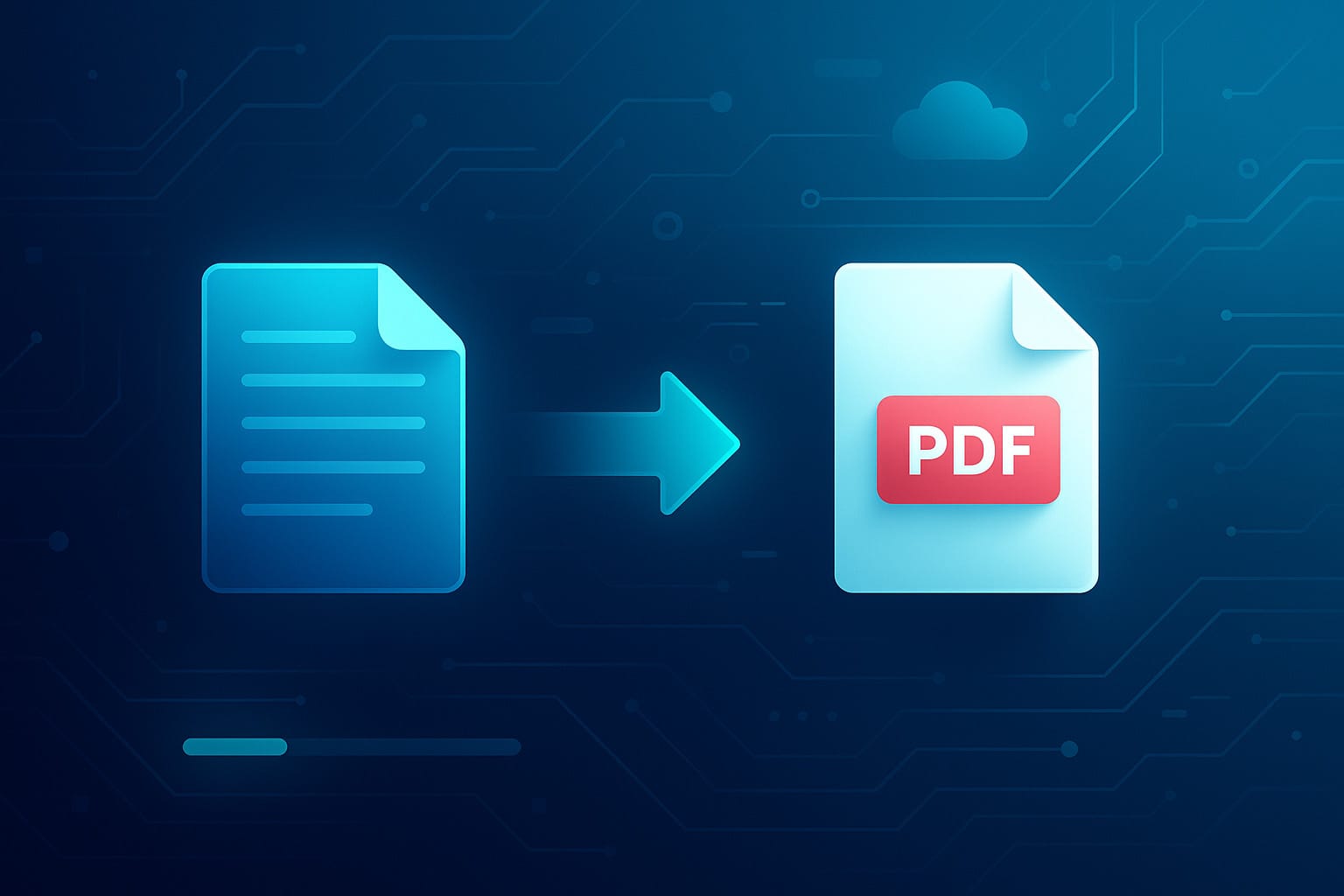
How to convert a Word file to PDF (and vice versa)

Converting Word files to PDF (and vice versa) is a common need at work, school, and in everyday life. Whether you need to send a résumé, prepare a report, share a contract, or simply archive a document, the PDF format ensures that the file layout remains the same regardless of who opens it or which device they use. In this article, you will learn how to easily convert Word to PDF and PDF to Word using free online and offline tools.
✅ Why Convert Word to PDF
The PDF format is ideal for sharing documents because it:
- preserves formatting
- is compatible with all devices, including Windows PCs, Macs, smartphones, and tablets
- can be password-protected
- is lightweight and easy to print
Convert Word to PDF: 3 Simple Methods
Method 1: Using Microsoft Word
If Microsoft Word is already installed on your computer, this is certainly the quickest and most straightforward solution.
- Open the Word file you want to convert.
- Click File in the top menu.
- Select Save As.
- In the window that appears, choose the folder where you want to save the file.
- Click the Save as type drop-down menu and select PDF (*.pdf).
- Click Save.
✅ Within seconds, your PDF file will be ready to share, with the assurance that the document will remain intact and its layout unchanged.
Method 2: Using Google Docs
If you do not have access to Microsoft Word or prefer to work online, Google Docs is a good free alternative:
- Sign in to Google Docs with your Google account.
- Upload the Word document by selecting File > Open, then Upload.
- Once the document has been uploaded, go to File again.
- Select Download, then PDF Document (.pdf).
✅ Your file will automatically download as a PDF to your default downloads folder.
Method 3: Free Online Services
There are many free online services that let you convert Word files to PDF, including Smallpdf, iLovePDF, and PDF2GO.
- Go to the website of the service you prefer.
- Upload the Word file from your computer.
- Click Convert.
- Download the resulting PDF.
👉 Be mindful of privacy: avoid using these tools for sensitive documents or documents containing personal data.
Convert PDF to Word: When You Need To
You may also need to do the opposite: edit a PDF document by converting it to Word format. Here are the main options.
Method 1: Using Microsoft Word
Microsoft Word itself lets you open and edit PDF files.
- Open Microsoft Word.
- Go to File, then Open.
- Select the PDF file you want to convert.
- Word will display a message warning you that the document will be converted and that the formatting may change slightly.
- After editing the file, save the document in Word format (.docx) by clicking File and Save As.
⚠️ Some graphic elements or complex tables may not align perfectly.
Method 2: Using Google Docs
Google Docs can also convert PDFs to Word, although the formatting may be less accurate.
- Open Google Drive.
- Upload your PDF.
- Once it has been uploaded, right-click the file and select Open with > Google Docs.
- Google will automatically convert the PDF into an editable document.
- Then download the edited document by clicking File > Download > Microsoft Word (.docx).
✅ Ideal for simple text documents. For complex documents, Word is a better choice.
Method 3: Free Online Conversion Tools
Here are some reliable websites:
Simply:
- Upload the PDF.
- Select the Convert to Word option.
- Download the .docx file.
💡 Some websites also offer OCR recognition to convert scanned PDFs into editable text.
Tips for Maintaining High Quality
Converting from PDF to Word can cause formatting issues. Here are some useful tips:
- ✅ Avoid scanned PDFs: they are images, not actual text.
- ✅ Use well-known and reliable tools.
- ✅ Always check the Word file after conversion: you may need to adjust margins, fonts, or images.
- ✅ Whenever possible, ask for the original Word file before converting it.
📌 Benefits of Converting PDF to Word and Vice Versa
Converting Word to PDF ensures that the person receiving the document sees it exactly as intended by the author, regardless of the device they use. In addition, a PDF file is generally lighter and easier to distribute and print.
Conversely, converting PDF to Word is useful when you need to edit, update, or reuse the contents of a document you received in a non-editable format.
🔒 Keep Your Files Secure
When using online tools:
- do not upload confidential documents
- check that the website uses HTTPS
- read its privacy policies
For confidential documents, prefer offline solutions such as Microsoft Word or professional tools such as Adobe Acrobat Pro.
Final Considerations
Converting between Word and PDF is a simple and common task that anyone can handle thanks to the many offline and online tools available. By carefully following the methods described above, you can perform effective conversions while keeping the quality and integrity of your documents under control. Always choose the tool that best suits your needs, and do not hesitate to try different options to find the most convenient and effective solution.
Share this post
About the Author: Enrico