Fillable PDF forms: how to create and share them

Fillable PDF forms have become an essential tool for people working in digital services, public administration, businesses, and even everyday life. They make it possible to collect data, signatures, or responses in an organized way, without printing and scanning paper documents. But how can you create and share them professionally?
In this complete guide, we will explain what a fillable PDF form is, how to create one with different tools, and how to manage its completion and sharing securely.
🧾 What Is a Fillable PDF Form?
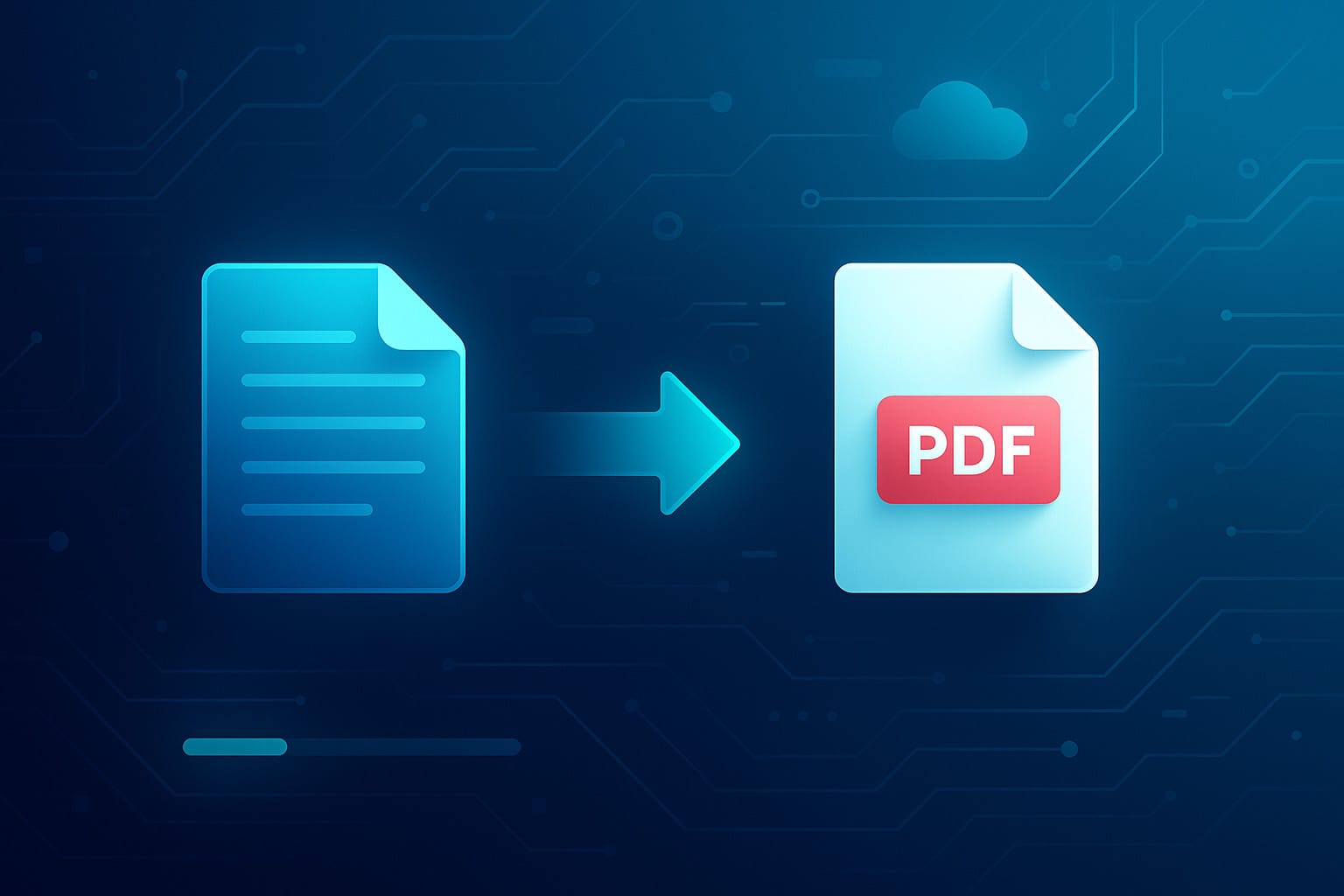
A fillable PDF form is a PDF file containing interactive fields—such as text boxes, drop-down menus, radio buttons, or digital signatures—that users can complete directly on their computer or smartphone without having to print it.
In other words, it is a “live” digital document designed to simplify information collection.
The main benefits of fillable PDF forms are:
- ✅ Professionalism: ideal for businesses, professional firms, public bodies, and schools.
- ✅ Time savings: users can complete and send the form in just a few minutes.
- ✅ Paperless: sustainability and convenience in one format.
- ✅ Universal compatibility: they can be opened easily with most PDF readers.
Common examples include:
- course or event registration forms;
- consent or privacy forms;
- employment or collaboration agreements;
- purchase orders or quotes;
- questionnaires and surveys.
🛠️ How to Create Fillable PDF Forms
Creating fillable PDF forms is much easier than you might think. Today, there are several free and professional tools that let you do it even without design or technical skills. Let’s look at them in detail.
1. With Adobe Acrobat Pro DC
It is the most comprehensive and professional tool for creating interactive forms.
Main steps:
- Open Adobe Acrobat Pro DC.
- Go to Tools → Prepare a Form.
- Select an existing PDF file or create a new blank document.
- Acrobat will automatically detect any fillable fields, such as lines or blank spaces.
- Add or edit fields using the tools on the right: text boxes, drop-down menus, signatures, buttons, and more.
- Save and share the file.
You can also protect the form with a password or set editing restrictions.
It is the ideal solution for people working in business or legal settings who need certified digital signatures.
2. With Free Online Tools
If you do not want to install software, you can use web services that let you create fillable PDFs online in just a few minutes.
Some of the most popular options include:
- PDFescape (https://www.pdfescape.com)
- Jotform PDF Editor
- DocFly (formerly PDF Pro)
- Smallpdf
The process is similar: upload the file, add fillable fields, save it, and download the new PDF.
These are perfect solutions for handling occasional fillable PDF forms, such as registrations, feedback forms, or documents that need to be signed on a one-off basis.
3. With LibreOffice or Microsoft Word
Word and LibreOffice also allow you to create editable forms and then export them as PDFs.
Here is how to do it in Word:
- Enable the “Developer” tab in the Ribbon settings.
- Insert content controls such as text boxes, drop-down lists, and option buttons.
- Save the document, then go to File → Export → Create PDF/XPS.
In LibreOffice, the process is similar: use Form → Form Controls, then select “Export as PDF” and enable the “Create PDF form” option.
These tools are ideal for anyone who prefers working in a familiar environment such as a word processor.
✍️ Tips for Completing PDF Forms
Once you have created the file, it is important to make PDF form completion easy for the end user.
Here are some best practices:
- Use clear, well-aligned fields: readability is essential.
- Add explanatory labels, such as “Full Name,” “Email,” and “Signature.”
- Avoid text that is too small: 11–12 pt is ideal.
- Where possible, add automatic validation, for example, checking that an email address contains “@”.
- Leave space for a digital signature or a signature upload field.
Also, always check that the file is actually fillable: open it with a standard PDF reader, such as Adobe Reader or Foxit Reader, and try typing in the fields. If it works, your form is ready.
📤 How to Share Fillable PDF Forms
Once you have created and tested it, it is time to share the document.
There are several methods, depending on the context:
1. By Email
The most common method is to send the file as an attachment or provide a download link.
Make sure you:
- give the file a clear name, for example
event_registration_form.pdf; - state whether it needs to be digitally signed;
- specify how to return the completed form, for example, “send it back by email by November 10.”
2. Through the Cloud
Services such as Google Drive, Dropbox, and OneDrive make it easy to share a fillable PDF form through public or private links.
You can also set view-only or download permissions.
3. On a Website or Business Form
If you manage a WordPress or company website, you can upload the fillable PDF form to a “Documents” or “Downloads” section.
Alternatively, you can integrate it into an online form: for example, users complete a web form and automatically receive a pre-filled PDF by email. This solution is often used in HR processes or for automated quotes.
🔐 Security and Digital Signatures in PDF Forms
Security is essential, especially when forms contain personal or sensitive data.
Here are some best practices:
- Set password protection on the file, for opening or editing.
- Disable printing or copying when they are not necessary.
- Use qualified digital signatures, for example through SPID or CNS, for official documents.
- If you work in a company, store completed forms in protected archives or shared folders with restricted access.
Many software tools, including Adobe Acrobat and Foxit PDF Editor, offer integrations with advanced electronic signature and digital signature systems in full compliance with European eIDAS regulations.
💡 When a Fillable PDF Form Is the Right Choice
Although many web-based alternatives now exist—such as online forms, Google Forms, and Typeform—fillable PDF forms remain unbeatable in several situations:
- when you need an official document or one that can be digitally signed;
- when you need to store static copies of completed forms;
- for contracts, self-certifications, or declarations that require a standard format;
- in offline contexts, where users must complete the form without an internet connection.
In practice, a fillable PDF form is a bridge between the paper and digital worlds: practical, universal, and widely recognized.
🔄 From Creation to Collection: The Ideal Workflow
To make the most of fillable PDF forms, follow this workflow:
- Design the form: define which fields are really needed.
- Create the fillable PDF using the software or service best suited to your needs.
- Test it on multiple devices, including desktop, mobile, and tablet.
- Share it by email, cloud, or website.
- Collect and archive the completed versions, preferably in digitally signed format.
This will give you an organized, secure, and easily automated process.
✅ Conclusion
Fillable PDF forms are now an essential tool for digitizing processes, reducing errors, and simplifying administrative tasks.
Whether you are a freelancer, a business, or a public organization, learning how to create and manage them correctly can save valuable time and improve the experience for your users or customers.
Mastering PDF form completion and secure sharing allows you to move from chaotic document management to an efficient, sustainable, and modern system.
In short: a small tool for better digital organization.
Share this post
About the Author: Enrico