How to download a WhatsApp Web voice message and convert it to mp3

If you often work on a computer, sooner or later you may need to save a voice message in a universal format. That raises the key question: how do you download WhatsApp Web voice messages as MP3 files? The short answer is that it is easy to do. WhatsApp Web (or the Desktop app) lets you save voice messages as .ogg files using the Opus codec; from there, it only takes a few steps to convert them to MP3, which works with virtually any media player, audio editor, car stereo, or platform. This guide covers both the VLC Media Player method (free for Windows/macOS/Linux) and a free online service for times when you do not want to—or cannot—install software. The goal is the same: download WhatsApp Web voice messages as MP3 files quickly, cleanly, and without compromising usability.
1) What you actually download from WhatsApp Web (and why conversion is needed)
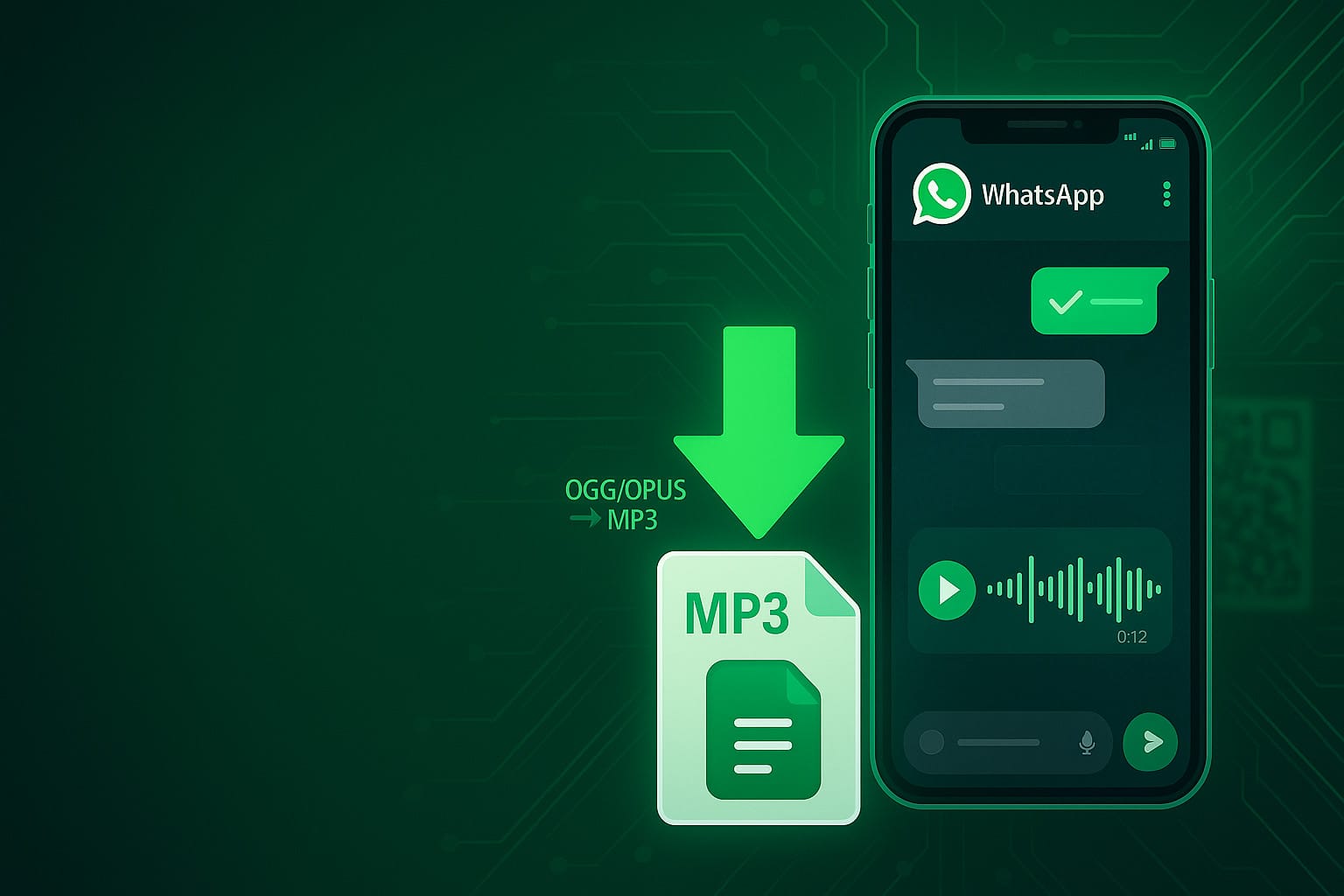
When you save a voice message from WhatsApp Web, you get an .ogg file encoded with Opus, a modern codec designed for voice that delivers high quality in a small file size. The downside is compatibility: not every older device or piece of software can handle the Ogg+Opus combination. That is why converting to MP3 is often the most practical solution when you need to share the file, edit it in older software, or play it through an older car stereo. In short, the most straightforward way to download WhatsApp Web voice messages as MP3 files is to download the .ogg file from the interface and then convert it.
How to download a voice message from Web/Desktop (quick steps):
- Open the chat in WhatsApp Web or the Desktop app.
- Hover over the voice message and open the context menu (the small arrow or three dots).
- Click Download and save the
.oggfile to your computer. - (Optional) Rename the file right away with a descriptive name, for example
2025-09-11_Rossi_meeting.ogg.
2) VLC Media Player method (free and cross-platform)
VLC is probably already installed on your computer. In addition to playing almost anything, it can convert files to MP3 without requiring plugins. It is the most reliable option if you want to download WhatsApp Web voice messages as MP3 files while keeping everything local, without uploading files online.
Step-by-step procedure (Windows/macOS/Linux):
- Open VLC.
- Go to Media > Convert / Save (shortcut: Ctrl+R on Windows).
- Under File, click Add and select the
.oggfile downloaded from WhatsApp Web. - Click Convert / Save.
- Under Profile, select Audio – MP3.
- (Optional) Click the wrench icon to adjust settings such as bitrate (see below).
- Under Destination file, click Browse, choose the folder, rename the file as
name.mp3, and click Start.
Recommended settings for voice:
- Bitrate: 64–96 kbps is usually more than enough for spoken audio. If you want a little extra headroom, 128 kbps is a good compromise.
- VBR vs. CBR: where available, VBR (variable bitrate) generally optimizes quality and file size better than CBR.
- Volume/normalization: avoid boosting levels too much. For general use, keep the default levels and normalize later in an editor if necessary.
Quick troubleshooting:
- The file does not start converting? Try playing it in VLC first: if you can hear it, conversion should work. If you encounter errors, update VLC to the latest version.
- Is the result larger than the original? That is normal: Opus compresses voice very efficiently. At the same perceived quality, an MP3 can take up more space. Reduce the bitrate to 80–96 kbps if you want smaller files.
3) Free Online Method: FreeConvert (OPUS → MP3)
For anyone who prefers a no-installation solution, FreeConvert’s OPUS-to-MP3 page is quick and intuitive. It is ideal when you want to download WhatsApp Web voice messages as MP3 files without using software on your computer.
How to use it, step by step:
- Open FreeConvert’s OPUS-to-MP3 page.
Click “Choose Files” and upload the OGG/OPUS file downloaded from WhatsApp Web. You can select files from your device, Dropbox, Google Drive, OneDrive, or a URL; drag and drop is also supported in the central area. With the free plan, the maximum file size is 1 GB per file. - (Optional) Advanced settings.
Click “Advanced Settings (Optional)” to customize some parameters. For example, you can leave the audio codec set to Auto or adjust the trim by specifying the start and end of the segment to export—useful for removing silence or unnecessary parts. If you are converting multiple files at once, you can use “Apply to All” to apply the same options to every item in the queue. - Convert and download the MP3.
Click “Convert to MP3”. When the status changes to “Done”, click “Download MP3” to get the final file. The page also indicates that you can batch-convert several files at once.
Security and privacy notes: FreeConvert states that it uses 256-bit SSL encryption during transfer and automatically deletes files after a few hours. If you are working with sensitive content, consider using local conversion instead, such as VLC. In all other cases, the service is a convenient and quick way to download WhatsApp Web voice messages as MP3 files directly in your browser.
Practical tips:
- For simple listening or forwarding, standard conversion is already ideal; trimming is useful for cutting the beginning or end of a message before creating the MP3.
- If you need to convert many voice messages at once, upload them in bulk and use “Apply to All” in the settings. This speeds up the process and keeps your files consistent.
With these steps, you can turn voice messages into MP3 files in just a few clicks using FreeConvert: download from Web/Desktop, upload to FreeConvert, and download WhatsApp Web voice messages as MP3 files ready to archive, send, or edit.
4) Best practices: quality, archiving, and Compatibility
Realistic quality for voice. Most WhatsApp voice messages contain spoken audio only: no high-fidelity music and no extreme dynamics. For this reason, 64–96 kbps MP3 covers almost every scenario. Moving up to 128 kbps makes sense if you need to do some editing or want some headroom for minor adjustments.
Keep the original. After conversion, retain both the .mp3 and the .ogg file. If you ever need to resample or trim it using different settings, the OGG Opus file is the closest source to the original.
Naming and organization. Rename files using a clear convention: YYYY-MM-DD_contact-name_topic.ext. This makes them easier to search and organize at a glance.
Full compatibility. The real reason to download WhatsApp Web voice messages as MP3 files is compatibility: MP3 works everywhere. If you need to send a voice message to someone using an older device, MP3 helps ensure it can be played.
FAQ
Why is my file “.ogg” instead of “.mp3”?
WhatsApp records voice messages using Opus in an Ogg container. This is normal and beneficial for file size and quality. It is not an error: you simply need to convert it.
My player cannot open the OGG file. What should I do?
Some players support Ogg+Vorbis but not Ogg+Opus. The practical solution is to convert the file to MP3 using VLC or an online service.
Can I combine multiple voice messages into one MP3?
Yes. You can convert each .ogg file to .mp3 and then join them using an audio editor, including a free one. Some online services also offer one-click joining.
Can I use the terminal?
If you prefer the command line and frequently work with audio files, FFmpeg is a versatile tool:
ffmpeg -i input.ogg -c:a libmp3lame -b:a 128k output.mp3Replace -b:a 128k with -q:a 2 for good-quality VBR. It is a more advanced option, but not necessary if you use VLC or a web app.
What about privacy and rights?
Voice messages may contain personal data. If you share or publish them, make sure you have the consent of the people involved. For sensitive files, choose offline conversion with VLC and store everything in protected or encrypted folders.
Recommended Workflow (in 2 Minutes)
- Download the voice message from WhatsApp Web/Desktop: right-click the message → Download → you get
name.ogg. - Convert it to MP3:
- With VLC: Media > Convert / Save → Add
.ogg→ Convert → select the Audio – MP3 profile → Start. - Online (free): upload the
.oggfile to Online Audio Converter → select MP3 → Convert → Download.
By following this process, you will be able to download WhatsApp Web voice messages as MP3 files reliably, choosing each time whether to prioritize privacy through local conversion or convenience through an online service.
Conclusion
To recap: WhatsApp Web saves voice messages as .ogg (Opus) files; to make them universally compatible, you convert them to MP3. If you want to download WhatsApp Web voice messages as MP3 files in the safest and most predictable way, use VLC: it is free, cross-platform, and works offline. If you need maximum speed and are working with non-sensitive files, a free online service such as Online Audio Converter can work just as well. In just a few steps, you get the result you need—and the next time someone asks how to download WhatsApp Web voice messages as MP3 files, you will know exactly what to do and which option to choose.
Share this post
About the Author: Enrico