Android Auto: how to set it up, use it and fix common problems

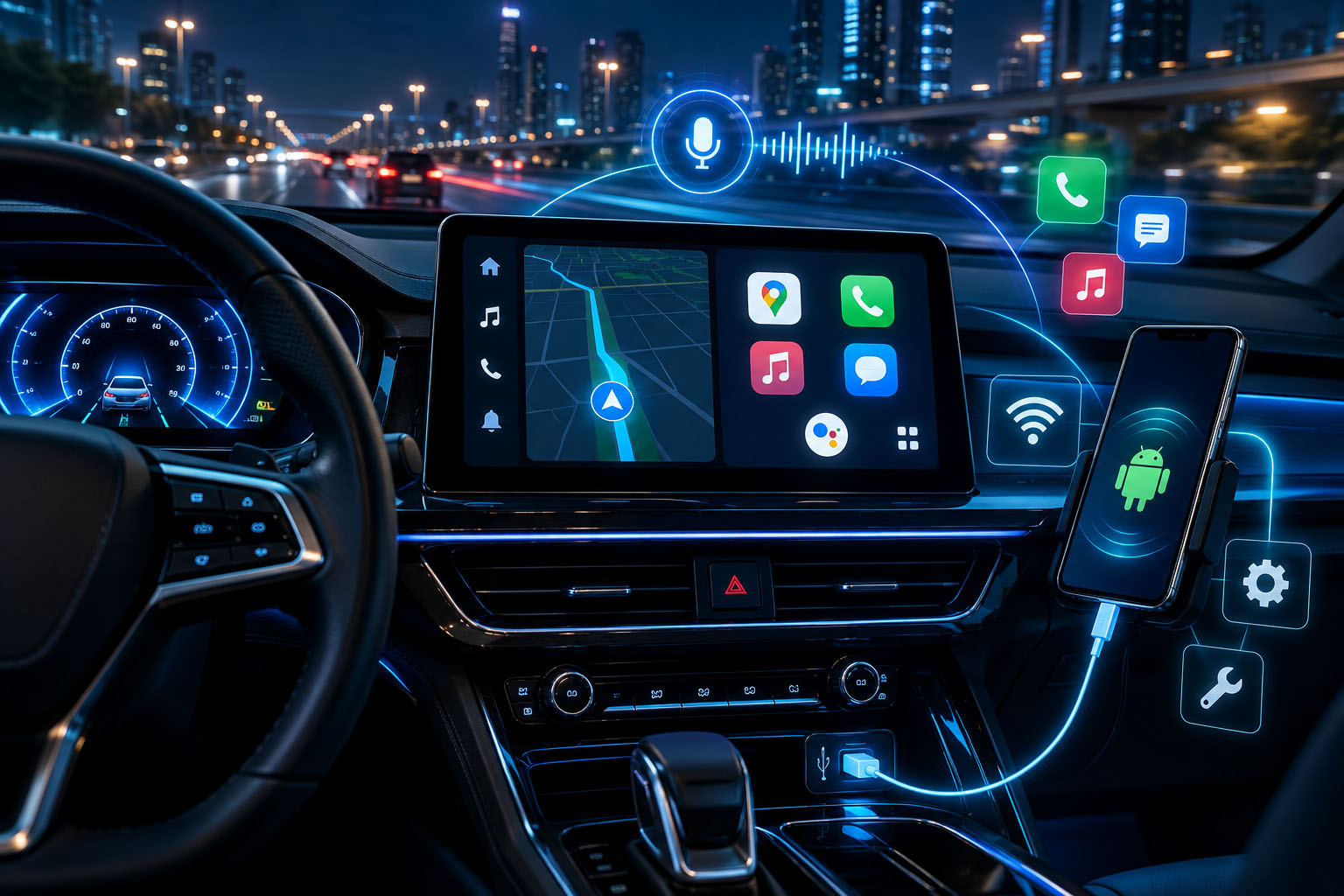
Android Auto lets you use a simplified interface for navigation, calls, messages and audio on your car’s compatible display. When the connection does not start, the issue is often simpler than it seems: a USB port that only provides charging, a cable that cannot transfer data, or a car system that supports Android Auto only with a cable and not wirelessly.
Before changing settings on your phone, check the vehicle, the supported connection type, the USB port and the cable separately. This is the quickest order for avoiding random troubleshooting attempts.
Before you start: requirements for wired and wireless Android Auto
Android Auto at a glance: what it does and what it is not
Android Auto uses your smartphone as the main device and displays a driving-focused interface on your car’s infotainment system. It is not full screen mirroring: it only shows compatible apps and features, with limitations designed to help reduce distractions.
It should not be confused with Android Automotive OS. Android Auto normally requires an Android phone connected to the car, while Android Automotive OS is an operating system installed directly on the vehicle’s hardware. A car may offer both, but they are not the same product.
Wired and wireless compatibility: comparison table
| Requirement | Android Auto via USB | Wireless Android Auto |
|---|---|---|
| Android version | Android 9 or later | Android 11 or later |
| Car or stereo | Compatible with Android Auto | Explicitly compatible with wireless Android Auto |
| Phone | Compatible Android smartphone | 5 GHz Wi-Fi support |
| Connections | USB data cable and the vehicle’s data-enabled USB port | Bluetooth, Wi-Fi and location services enabled during initial pairing |
| Other | Active data plan | Active data plan |
USB compatibility does not imply wireless compatibility. A car may recognise Android Auto with a cable but lack the hardware or software needed for a wireless connection. Check Google’s support page for current requirements and availability in your country or region.
How to check whether your car and phone are compatible
Check the vehicle’s exact model, model year and trim, as well as the infotainment system manual. Google’s list of compatible vehicles is a useful first check, but the car manual and the infotainment manufacturer’s guidance remain the reference for ports, menus and wireless availability.
The presence of a USB socket is not confirmation on its own: some ports are intended only to charge a phone. Look in the manual for a port identified for data, smartphone integration or Android Auto.
Do you need to download Android Auto? Where to find the settings
The feature is already built into supported Android phones
On supported Android phones, Android Auto is normally built into the system and does not require a separate standard app from the Play Store. This is why it may not appear in the app drawer. Android Auto is not available on Android (Go edition) devices.
The settings are usually found in a path similar to Settings > Connected devices > Connection preferences > Android Auto. The location and wording may differ between Samsung, Google Pixel and other manufacturers. Google’s documentation confirms that a separate app is not needed to connect supported phones to a car display.
Updates to check before connecting
Before your first attempt, update Android and any Google apps required by your phone. If the car system offers an update, install it according to the manufacturer’s instructions. For an aftermarket stereo, check the manufacturer’s website for updated firmware.
An update may resolve a software issue, but it will not turn a charging-only port into a data port or add wireless support to an infotainment system that does not provide it.
How to set up Android Auto with a USB cable
Step-by-step instructions
- Park safely, turn on the infotainment system and unlock your phone.
- Find the USB port intended for Android Auto or a data connection.
- Connect the phone with a short, good-quality USB cable that supports data transfer. Avoid hubs, extension cables and unnecessary adapters.
- Follow the instructions on the car display and phone, accepting the requested permissions.
- If an update is required, complete it before trying again.
- If Android Auto does not open automatically, find it in the infotainment menu and select it manually.
The first connection may require a few additional confirmations. After pairing, the system will usually recognise the phone again when you connect it.
Practical example: the phone charges but Android Auto does not open
Charging only proves that power is reaching the phone. It does not prove that the cable and port are exchanging data. The cable may be intended only for charging, or you may have plugged it into a USB port that is not set up for Android Auto.
The most useful test is to use the port specified in the manual and a second, good-quality data cable. If the problem remains, check that Android Auto is enabled in the infotainment system.
How to set up wireless Android Auto
Initial wireless pairing
Only proceed without a cable after confirming that the vehicle or aftermarket stereo explicitly supports wireless Android Auto. Bluetooth, Wi-Fi and location services must be enabled on the phone during initial pairing.
- While safely parked, open the smartphone connection or pairing menu on the car display.
- Enable Bluetooth, Wi-Fi and location services on the phone.
- Start pairing from the car or phone, following the vehicle’s instructions.
- Confirm the pairing code and any requested permissions.
- Wait for Android Auto to start; if it does not appear, select it from the infotainment menu.
Wireless does not mean Bluetooth only
Bluetooth is used for initial pairing and some aspects of the connection, but wireless Android Auto also requires 5 GHz Wi-Fi. Turning off Wi-Fi, Bluetooth or location services during the first connection can therefore prevent setup from being completed.
If Android Auto works via USB but not wirelessly, you have already narrowed down the issue: the phone and infotainment system communicate over the cable, but this does not confirm that the car supports wireless mode. Before buying an adapter, check this specific compatibility. Adapters are not a universal solution and depend on the car system, phone and product used.
Using Android Auto every day: navigation, calls, messages and audio
Essential features on the car display
With a compatible navigation app, you can search for a destination, receive voice guidance and, where available, view traffic information, estimated arrival times and lane guidance. Calls are handled hands-free through the car’s speakers.
Compatible messaging apps let you listen to and dictate messages, usually with voice confirmation before sending. For music and podcasts, sign in to services on your phone before setting off: some platforms may require a subscription or previously configured credentials.
Voice controls, visible apps and safety limits
You can activate Gemini or Google Assistant with “Hey Google”, the microphone icon, or by holding the voice button on the steering wheel if your car supports it. Voice commands can be used to make a call, set a destination or play content without manually searching for the app on the display. The transition from Google Assistant to Gemini, as well as feature availability, may vary by device, language and region.
Android Auto only shows apps compatible with in-car use. If an app does not appear, check that it is installed, updated and configured on your phone. On some Samsung phones, unused apps may be temporarily suspended to save battery and disappear from the Android Auto launcher; opening the app on the phone or changing its sleep settings may make it available again. Google explains useful checks on its page about apps that do not appear.
Gemini in Android Auto: availability and limitations
Google is introducing Gemini in Android Auto, but availability, languages and features depend on the device, account configuration and country or region. Features may change over time.
Responses from an AI-based assistant can be inaccurate. Use it for practical, non-critical requests, not for safety decisions while driving. Current details are available in Google’s Gemini in Android Auto guide.
Android Auto is not working: checks in order of priority
1. Check compatibility, the USB port and cable
First, confirm support for the car’s model, model year and trim. Then try the USB port specified in the manual and another short, reliable cable that supports data transfer. Remove hubs, extension cables and adapters. This resolves many cases where the phone charges but Android Auto does not start.
2. Restart and check infotainment settings
Check that Android Auto is enabled in the car system settings. Restart the phone and infotainment system, then reconnect with the phone unlocked. On an aftermarket stereo, check for any firmware updates provided by the manufacturer.
3. If the cable works but wireless does not
Check in this order: wireless support explicitly stated by the car, Android 11 or later on the phone, 5 GHz Wi-Fi support, successful Bluetooth pairing, and Wi-Fi and location services enabled. Finally, open Android Auto manually from the car display. A vehicle that only supports a wired connection cannot connect wirelessly through a simple settings change.
4. If the problem only occurs with a second car
With rental, work or family cars, it may help to remove saved vehicles from Android Auto settings on the phone and pair again. Look for the connected-car management options in Android Auto settings; menu names may vary depending on the phone manufacturer.
5. If apps, the microphone or volume do not work
For apps, check compatibility, permissions, updates and battery-saving settings. If voice commands do not respond, hold the steering-wheel voice button until you hear the beep and speak only after it; also reduce outside noise and check the microphone, especially with aftermarket systems.
Many cars use separate volume levels for navigation, calls and media. Adjust the volume while the relevant function is active, and consult the vehicle manual if the behaviour is unclear. Google’s troubleshooting guide includes further specific checks.
Always complete setup while safely parked. Android Auto can help reduce distractions, but it does not replace attentive driving or compliance with applicable local laws.
Share this post
About the Author: Enrico