How to use WhatsApp web

WhatsApp is one of the most widely used messaging tools in the world. But not everyone knows that, in addition to the classic smartphone app, you can also use it on your computer with WhatsApp Web, a convenient browser-based version that lets you send and receive messages without touching your phone.
In this complete guide, we explain how to use WhatsApp Web, how to set it up, what you can do with it, and its pros and cons. We will also show you a few useful tips to get the most out of it.
What is WhatsApp web?
WhatsApp Web is an online version of WhatsApp that opens in your browser and syncs with the app on your smartphone in real time.
The service allows you to:
- Chat from your computer
- Send and receive files, photos, and voice messages
- Use emojis and stickers, and format text
- Receive desktop notifications
Requirements for using WhatsApp web
To use WhatsApp Web, you need:
- An active WhatsApp account on your phone
- A stable internet connection on both your computer and smartphone
- An up-to-date browser, such as Chrome, Firefox, Edge, or Safari
You do not need to download any software: WhatsApp Web works entirely online.
How to access WhatsApp Web
Here are the steps to access WhatsApp Web:
- Open your browser
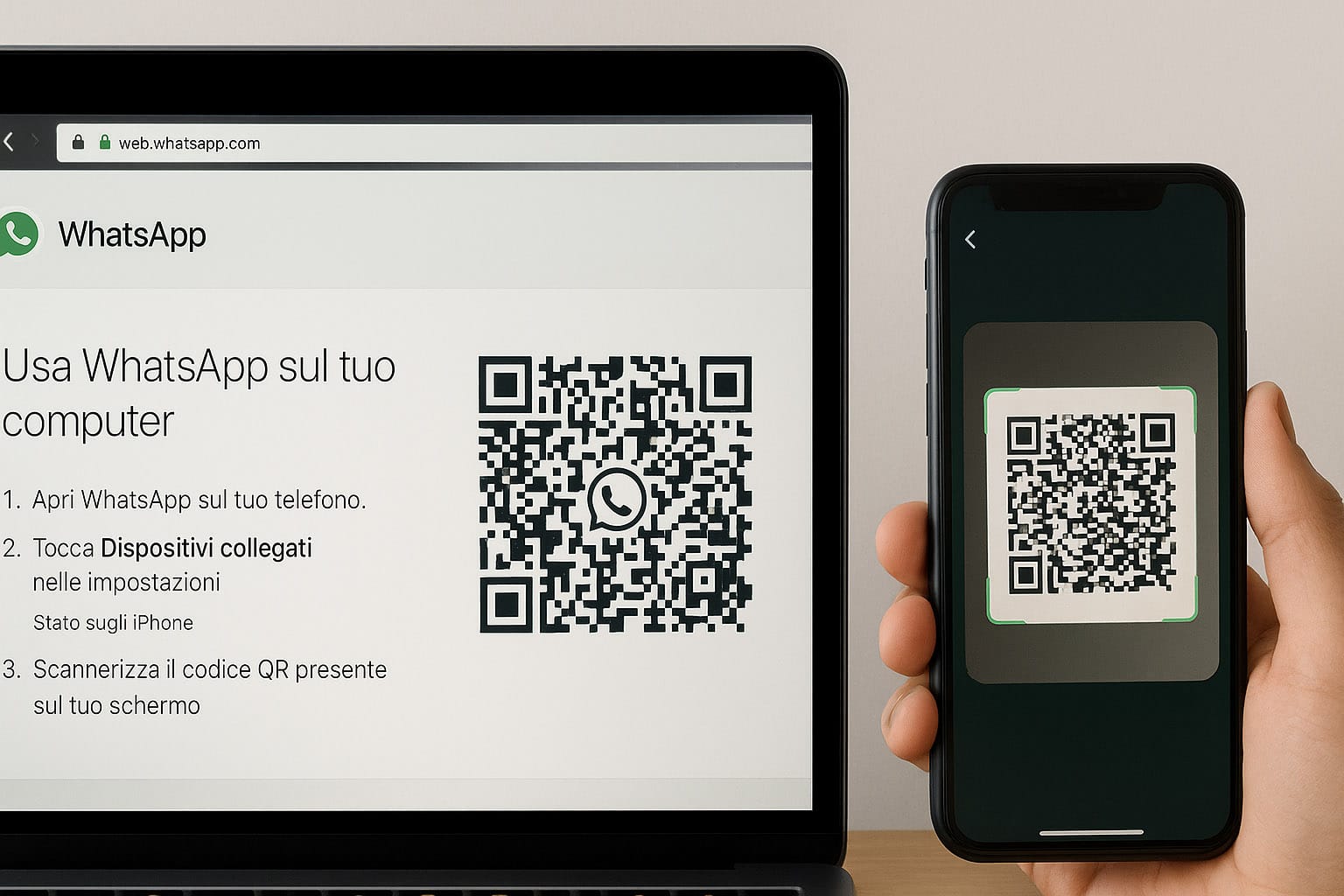
Go to: https://web.whatsapp.com
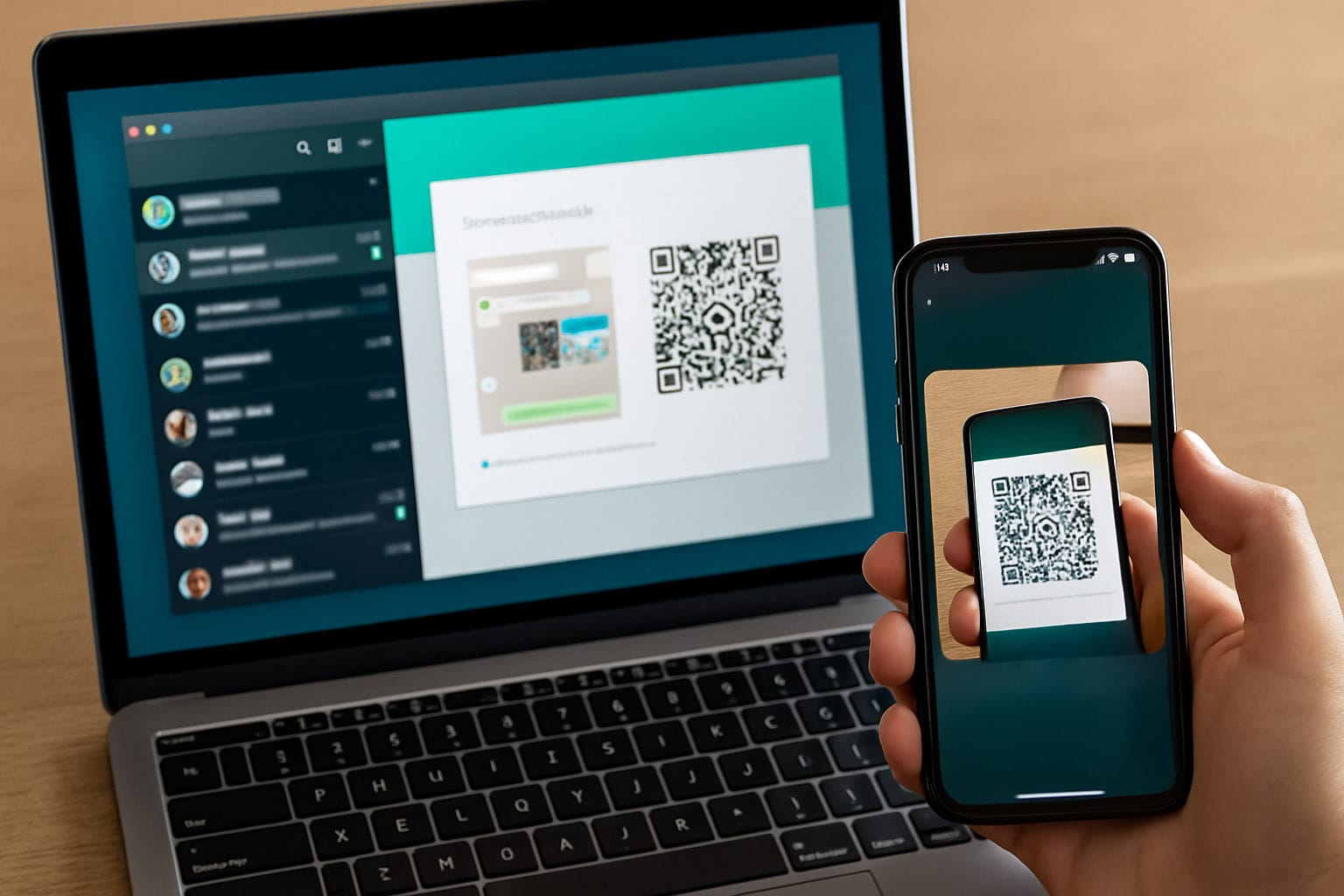
You will see a QR code in the center of the page.
- Open WhatsApp on your smartphone
Go to the settings:
- On Android: tap the three dots > Linked devices
- On iPhone: go to Settings > Linked Devices
Tap Link a device and scan the QR code with your camera.
- Connection complete
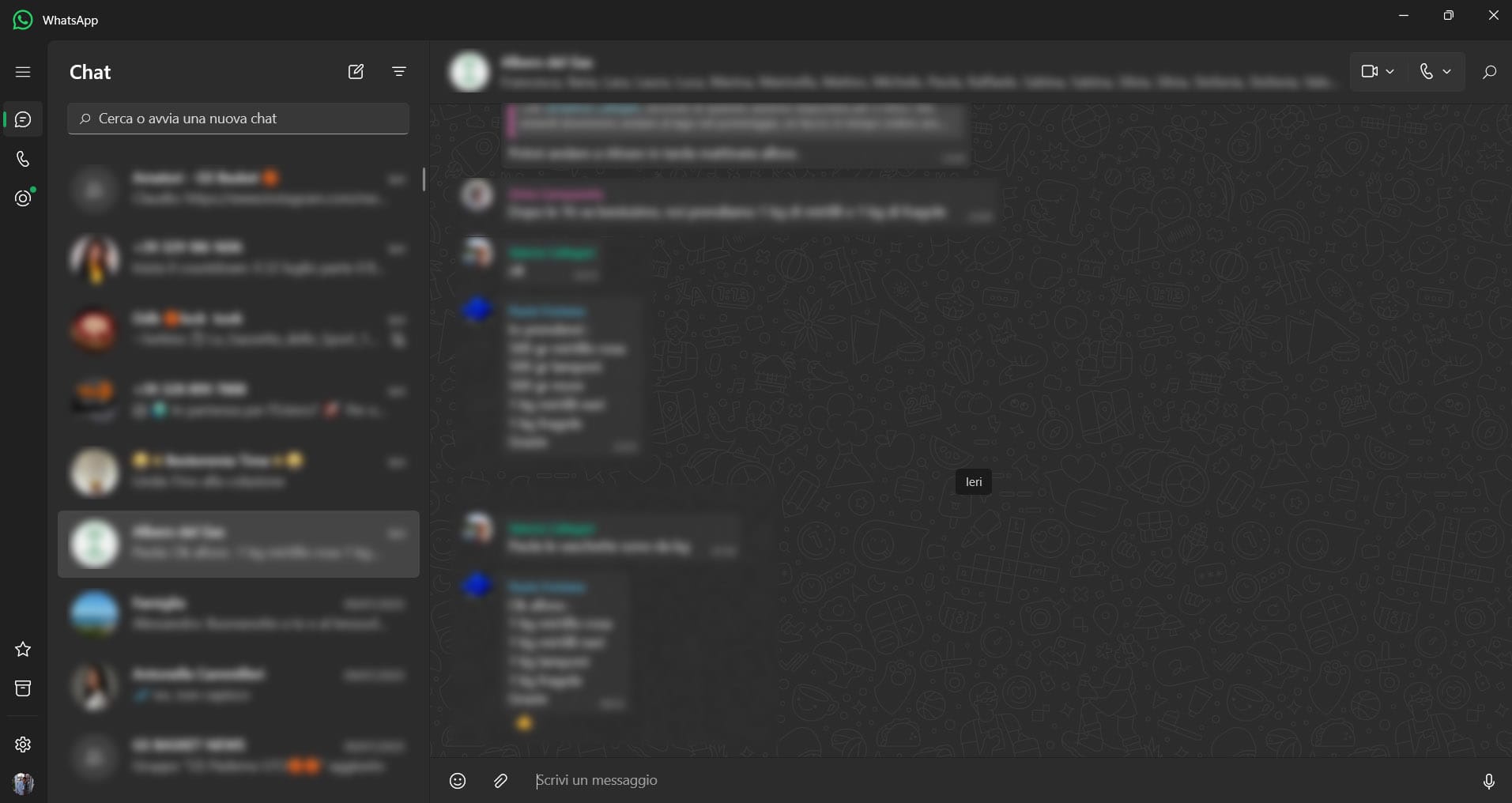
After a few seconds, your chats will appear directly on your computer screen.
Main features of WhatsApp web
Once linked, you can:
- Send text messages
- Attach files, including photos, documents, and videos
- Use voice messages with your computer’s microphone
- Archive, mute, or delete chats
- View contacts’ status updates
- Search for keywords in conversations
Limitations
You cannot:
- Start voice or video calls, except in WhatsApp Desktop
- Use two WhatsApp Web accounts at the same time without separate browsers
How to log out of WhatsApp web
To log out of your account:
- From your computer: click the three-dot icon > Log out
- From your smartphone: go to Linked devices and remove the active session
This is useful if you use a shared or public computer.
Useful tips and tricks
- Desktop notifications
Enable notifications so you do not miss new messages:
- Click the bell icon
- Allow notifications in your browser
- Keyboard shortcuts
Some useful WhatsApp Web shortcuts:
- Ctrl + N: new chat
- Ctrl + Shift + ]: next chat
- Ctrl + Shift + [: previous chat
- Ctrl + E: archive chat
- Ctrl + Backspace: delete chat
- Use multiple accounts with different browsers
Want to link two WhatsApp numbers? Open another browser or use incognito mode.
WhatsApp desktop: an alternative to using a browser
There is also an official app for Windows and Mac that works like WhatsApp Web but as a standalone version. You can download it from whatsapp.com/download.
It offers advantages such as:
- Voice and video calls
- Faster startup
- Works independently of the browser
🔒 Privacy and security
WhatsApp Web is protected by end-to-end encryption. However:
- Do not leave active sessions on public computers
- Always log out after use
- Check your Linked devices regularly
Conclusion
WhatsApp Web is a convenient and powerful tool for people who work on a computer and want to stay connected. Easy to activate, functional, and well integrated, it can improve productivity and make communication smoother.
Share this post
About the Author: Enrico